pyBricks for SPIKE Prime / Robot Inventor
 +
 +
Warning
Please Note: You are currently viewing the tutorial for the 【pyBricks Zone (Dual Hubs)】 MicroPython high-level development environment. If you are using EV3 or other official system software, please click the button above to return to the hub menu and reselect.
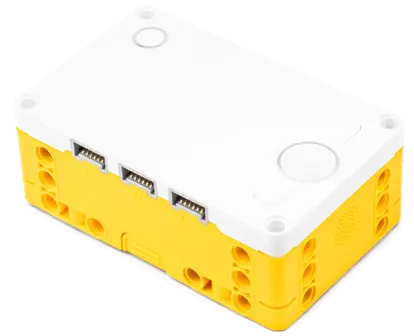
This page applies to users who have installed the pyBricks third-party MicroPython firmware on the LEGO® Education SPIKE™ Prime Set or LEGO® MINDSTORMS® Robot Inventor.
In the Pybricks development environment, users can utilize Python commands for high-speed, stable communication. This sensor supports simple reading with built-in block commands, or importing our exclusive library functions to obtain high-resolution data and richer control functions.
Reading Methods and Core Modes
In the Pybricks development environment, this line follower provides two flexible data reading channels to adapt to different project needs:
- Built-in Sensor Commands (Read as a Color Sensor): Directly use Pybricks' built-in
ColorSensorcommands to read basic photoelectric or feature data, without loading extra code, for the most intuitive operation. - Import Exclusive Library Functions: By importing the Python library functions specially written by us for the 16-Way Line Follower, you can directly obtain high-resolution interpolated positions, complete 16-channel reflected light values, and feature line widths, providing richer high-level line-following control.
Example Programs and Library Download (Packaged Download)
Note
Pybricks 3.6.1 is no longer updated; please use Pybricks 4.1 (the 4.x zip also includes
MBC_sensors.py, one file for every MBC sensor).
We have provided four core example programs and exclusive library functions. Please choose the download according to your development mode:
Method 1: Built-in Sensor Commands
Directly use Pybricks' built-in commands to read the sensor, no extra code needed, quick start.
Available Functions Overview
— Calculated via Pybricks' built-inColorSensor, no extra library files to load
getLinePos16()
-16 ~ +16
Get line position (integer resolution). 0 is dead center, negative is left, positive is right. Suitable for basic PID line following.
getLineWidth16()
0 ~ 16
Get currently detected feature line width (number of triggered sensors). Can be used to detect intersections, T-junctions, and other wide-line features.
getLinePos100()
-100 ~ +100
Get high-resolution sub-pixel interpolated position. Accuracy is much higher than getLinePos16(), suitable for high-end PID precision line following.
getLineWidth100()
0 ~ 16
Get feature line width in high-precision mode. Use in combination with getLinePos100() to ensure data synchronization.
getLinePos16(), pair it with getLineWidth16(); if you use getLinePos100(), pair it with getLineWidth100() to obtain the most real-time and accurate reading results.
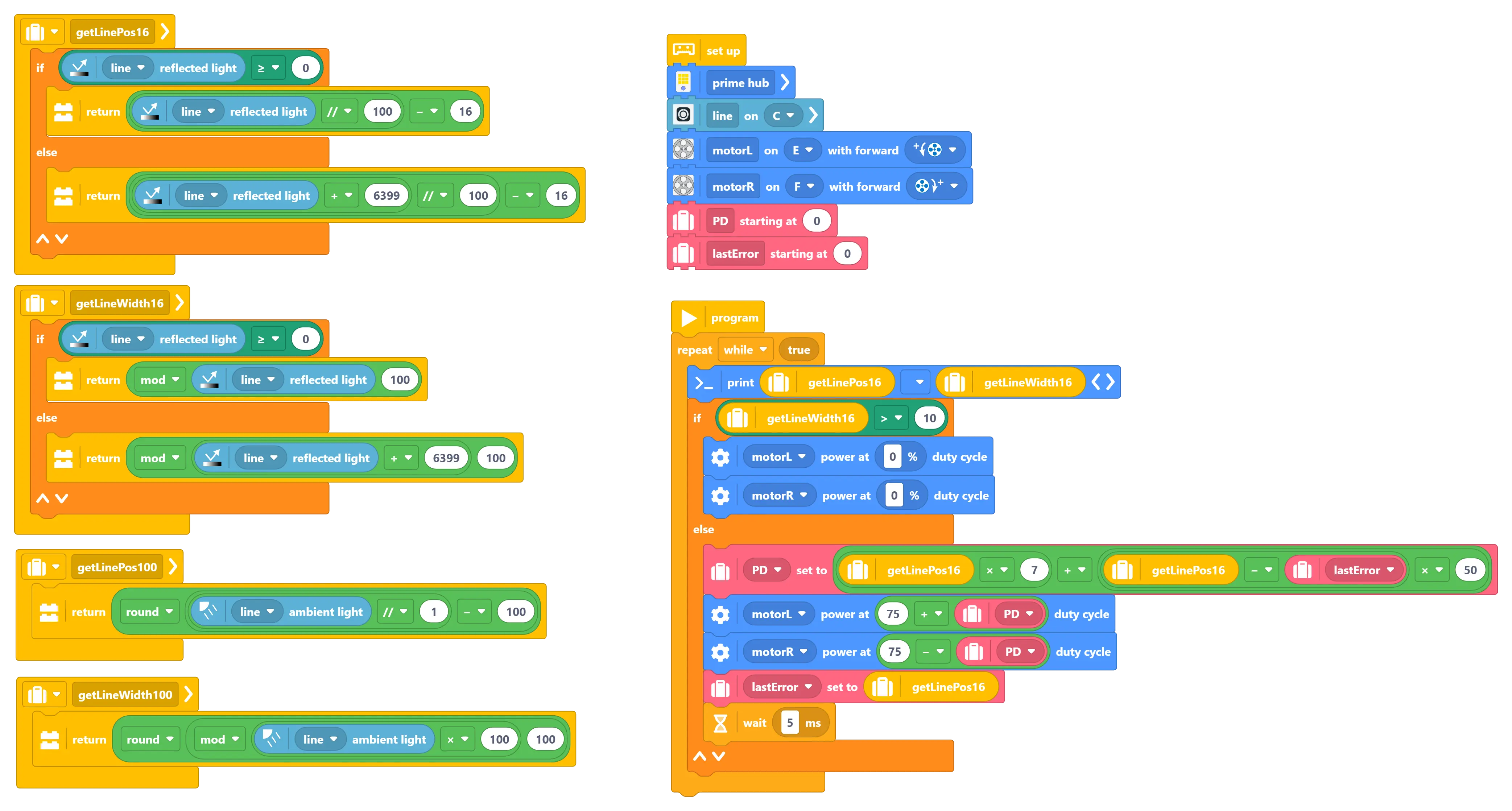
Block Mode (Built-in)
Use Pybricks' built-in graphical block commands to read the sensor, suitable for beginners to quickly learn basic line-following logic.
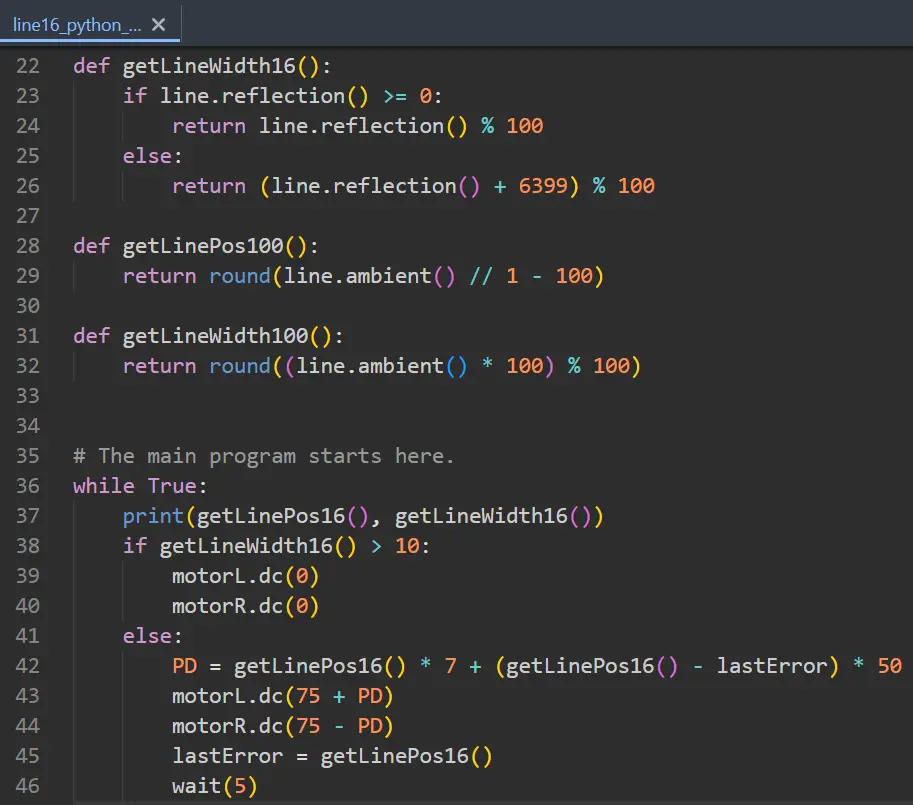
Method 2: Import Exclusive Library Functions
By importing our exclusive Python library functions, obtain advanced features like high-resolution interpolated position, full 16-channel data, and line width.
Available Functions Overview
— Provided byMBC_line16_Lib.py
line_init_port_multitask(port, multitask)
Initialize the sensor port. port=1~6 corresponding to A~F; multitask=True to enable asynchronous mode (use with await).
line_pos16()
🎯 Calibration-Tolerant
Get integer-resolution line position. 0 is dead center, negative is left, positive is right. Less sensitive to calibration quality and suitable for quick development and beginners, but you still need to calibrate once first (without calibration every channel reads as black).
line_pos100()
🔬 Needs Calib
Get high-resolution sub-pixel interpolated position, the best PID line-following choice. The prerequisite is that the sensor calibration must be fully completed; the more accurate the calibration, the more precise the values.
line_width()
0 ~ 16
Get feature line width (number of triggered sensors). Can be used to detect intersections and wide-line features, applicable to both position functions above.
line_ir_calibration()
list[16]
Return the array of 16 calibrated infrared reflected light values (each value 0~15). Viewed from behind the robot: index 0 = leftmost (ch1), index 15 = rightmost (ch16).
line_ir_ch(ch)
0 ~ 15
Get the calibrated light value of a single channel. ch=1~16, can be called continuously with high efficiency (shared cache).
line_junction()
0, 1, 2+
Return the number of detected line groups. 0=no line, 1=single line, 2+=intersection branch.
line_junction_name()
str
Return text description of intersection status: "none", "line", "junction".
line_bin_raw()
0 ~ 65535
Get the 16-bit raw trigger mask. Each bit corresponds to one sensor channel (bit0=ch1), 1=line detected.
line_on_sensors()
list[int]
Return the list of currently triggered channel numbers (1~16), e.g. [4, 5].
line_read_all()
dict
Read all data at once, return a dictionary containing all fields: ir_calibration, line_pos16, line_pos100, line_width, bin_raw, on_sensors, junction, junction_name.
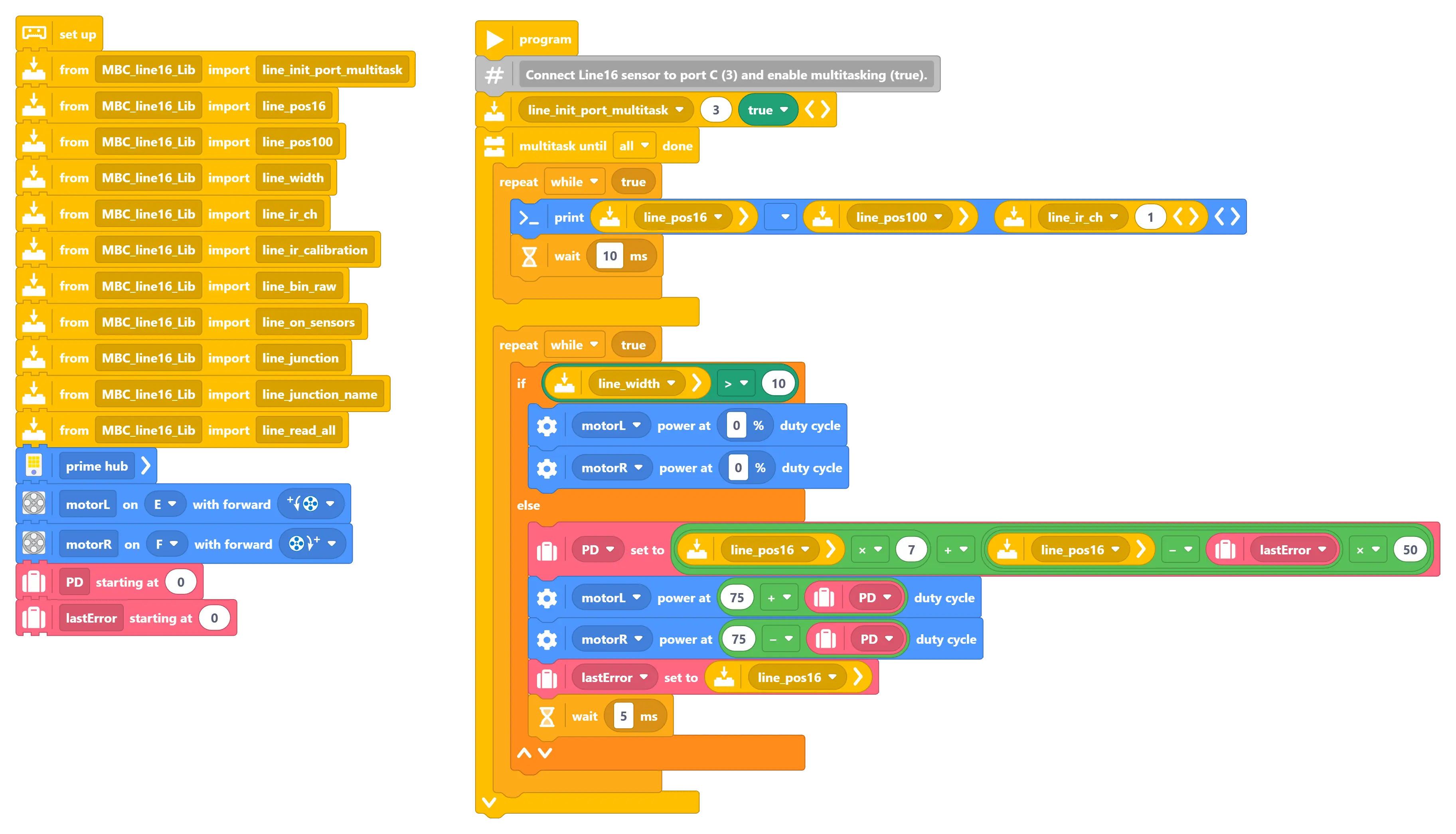
Block Mode (Import Library)
Graphical blocks combined with the exclusive library functions we developed for you, allowing easy access to high-resolution and high-precision values within block development.
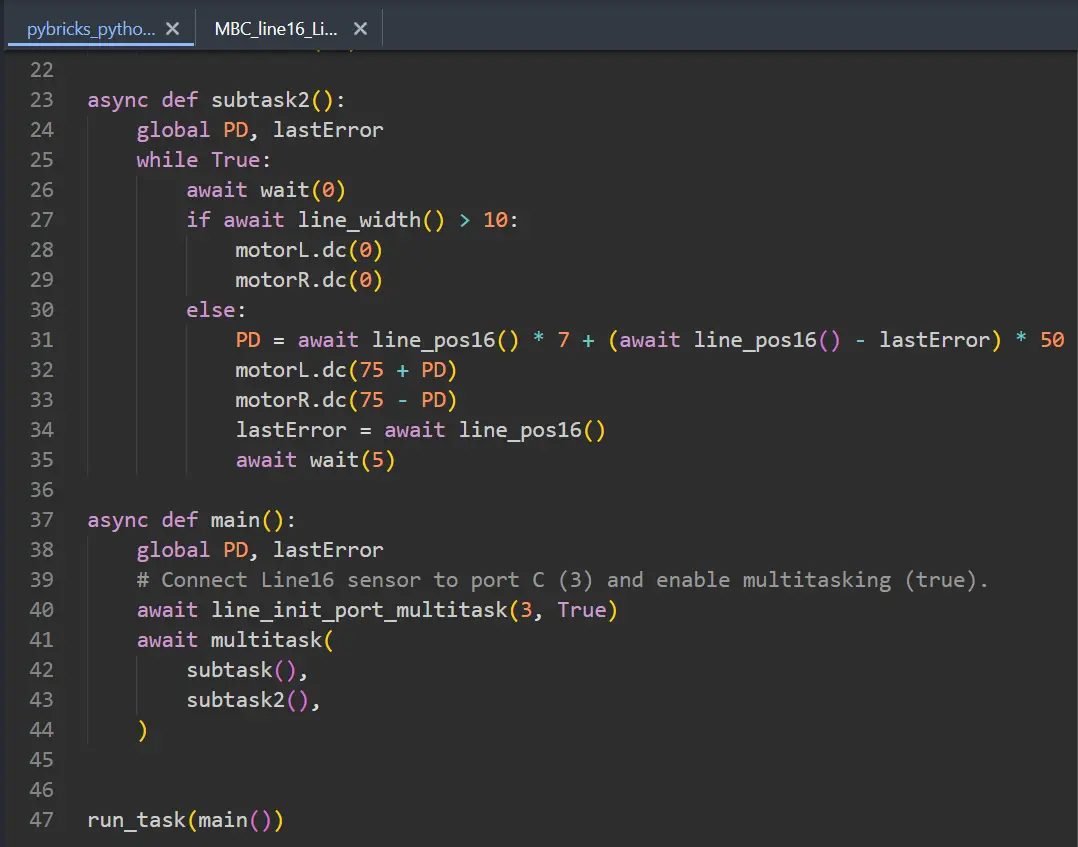
Exclusive Pybricks Library Function for 16-Way Line Follower (Library File)
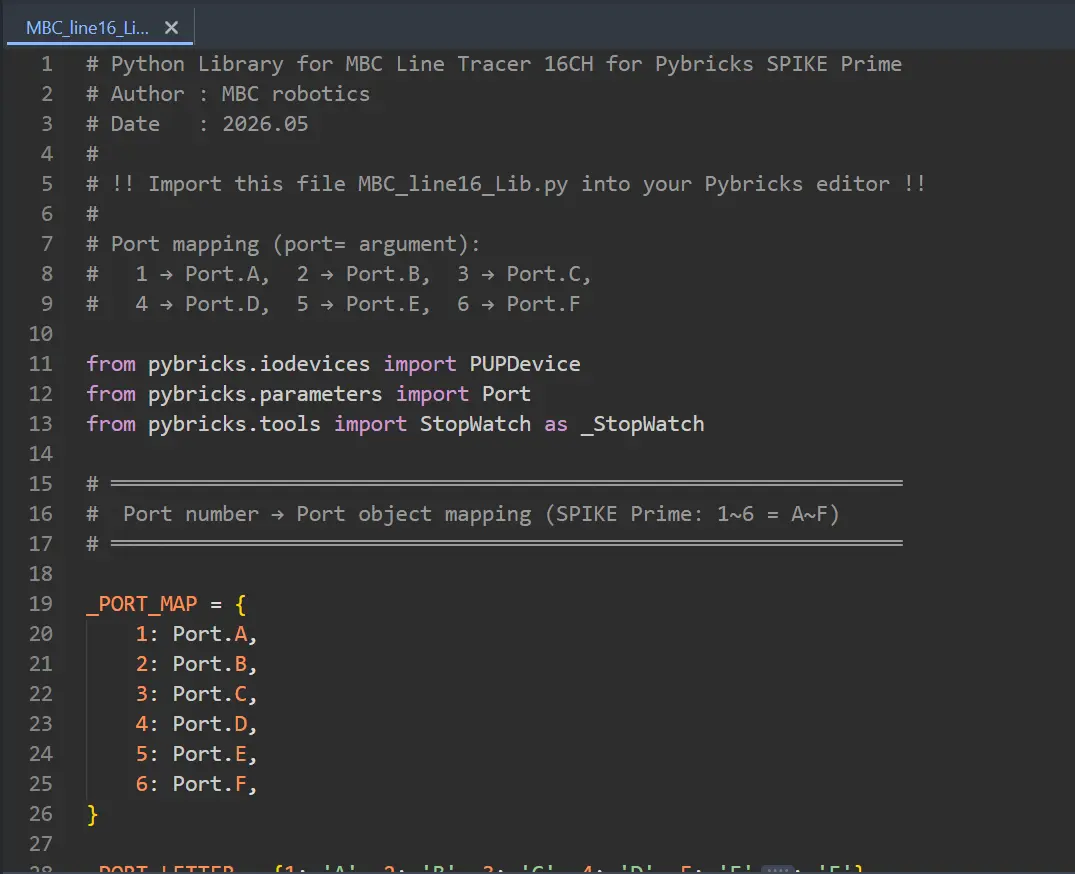
This is the indispensable driver core for the "Import Exclusive Library" examples. Download this library file to perfectly enable high-level interpolated position and 16-channel photoelectric fine reading.
Important Tip: File Placement
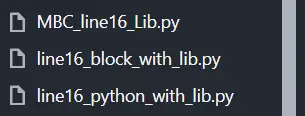
You must place this library file (MBC_line16_Lib.py) in the same project directory as your main program. Otherwise, the program will report a file not found error when executing!
⚠️ Rename the file: the examples use import MBC_line16_obj_Lib (v3.6.1: MBC_line16_Lib). After downloading, rename the file to MBC_line16_obj_Lib.py (the 4.x download already has this name) or MBC_line16_Lib.py (remove _v361), otherwise you will get an ImportError. The easiest way is to use the "Packaged Download" zip above — the file names inside are already correct.
Tip
Want to learn more advanced line-following control methods? You can take classes from these awesome coaches! They have rich experience in competitions and teaching, guaranteeing you'll learn a lot! 💯