SPIKE beginner examples: Ranger 8-Way (TOF8)
Back to the Ranger 8-Way product page
Note
The Pybricks programs below are the same files as on the Chinese page, so the comments inside the code are in Chinese. The English explanation under each example tells you what every line does.
This page is written for people who have never written a program before. The 5 examples start with "see which direction the nearest thing is in" and build up step by step to "the robot avoids obstacles on its own" and "the robot follows your hand". Every example comes in 3 versions. Just pick the one you have on hand:
| Version | Who it's for | How to open the example file |
|---|---|---|
| 🟨 The official LEGO SPIKE App (blocks) | Schools, first-time SPIKE users | Download the .llsp3 → open the SPIKE App → top-left "File" → "Open" → pick the file |
| 🟦 The MBC Blocks website (block-based, Chinese UI) | People who want Chinese blocks or need to read more sensor data | Open the MBC SPIKE Blocks website → top menu "File → Open" (or press Ctrl+O) → pick the downloaded .abp |
| 🐍 Pybricks (Python text code) | People who want to learn typed programming | Open code.pybricks.com → "Import a file" in the file panel on the left → import both the example file and MBC_laser8_obj_Lib.py → open the example → press ▶ to run |
Important
- For the MBC Blocks website and Pybricks, you first need to flash the hub with the Pybricks firmware (on the MBC Blocks website, use the top menu "SPIKE Hub → Install/Update Pybricks firmware"; it takes about 3 minutes, and you can switch back to the original LEGO firmware later with the SPIKE App). The official LEGO App does not need this.
- The official LEGO App examples here use the Education edition (SPIKE 3). The home edition (Robot Inventor) reads a different format, so the official App examples on this page do not apply to it.
- The MBC Blocks website and Pybricks programs are shorter: the sensor works out "nearest direction and distance" and "most open direction" by itself. The official App has no such blocks, so you have to compare the channels one by one with blocks, which makes the official App examples longer.
Note
The last one, Example 6, is an advanced bonus and comes in a Pybricks version only: the values it uses live in a new mode of the sensor firmware released 2026-10 or later, which the blocks in the official LEGO App and the MBC Blocks website cannot read.
Before you start: meet the Ranger 8-Way
The Ranger 8-Way has 8 lasers arranged in a half circle, sweeping from the car's far left, through straight ahead, to the far right. No calibration needed, just plug it in and go; after power-on, wait 2 to 4 seconds for all 8 lasers to get ready (every channel reads 120 during that time).
| Channel | 1 | 2 | 3 | 4 | 5 | 6 | 7 | 8 |
|---|---|---|---|---|---|---|---|---|
| Points toward | Far left | Front-left 60° | Front-left 30° | Straight ahead | Straight ahead | Front-right 30° | Front-right 60° | Far right |
Important
Use Example 1 first to confirm which channel on your sensor points in which direction. The table above assumes the sensor faces forward with the component side up. Put your hand on the left side of your robot: Example 1 should show a negative number. If it shows a positive one, your sensor is mounted the opposite way from the examples, and you will need to swap "turn left" and "turn right" in the later examples too.
Values used on this page
| Name | Range | Meaning |
|---|---|---|
| Channel 1 to 8 distance | 0 to 120 cm | The distance measured by each laser. 120 = nothing in that direction (or farther than 120 cm) |
| Nearest target distance | 0 to 120 cm | The smallest distance among the 8 channels |
| Nearest target direction | -7 to 7 | Where the nearest thing is: negative = left, 0 = straight ahead, positive = right (-7 far left, -5 front-left 60°, -3 front-left 30°, -1 to 1 straight ahead, and the same on the right). When nothing is around it reads -8 or 8, so on this page we always check "is the nearest target distance 120" first to tell whether anything is there |
| Most open direction | -7 to 7 | Which direction is the most open, the farthest (used for obstacle avoidance in Example 4) |
Tip
A reading of 120 can mean 4 things: there really is nothing in that direction, the object is farther than 120 cm, the sensor is not ready yet right after power-on, or that laser is broken. Black, shiny and transparent objects (glass, acrylic) are harder to measure. Black objects usually cannot be seen beyond about 30 to 50 cm, so every threshold in these examples is kept within 60 cm.
How do you read it in the official App? In the official LEGO App, the Ranger shows up as a "Color Sensor", and the 8 channel distances are spread across 5 blocks:
| Official block | What it gives you | How to split it |
|---|---|---|
| color | channel 1 | Use as is |
| reflected light | channel 2 | Use as is |
| raw red (under "More Sensors") | channel 3 + channel 4 × 256 | Remainder of ÷ 256 = channel 3; ÷ 256 rounded down = channel 4 |
| raw green | channel 5 + channel 6 × 256 | Remainder = channel 5; rounded down = channel 6 |
| raw blue | channel 7 + channel 8 × 256 | Remainder = channel 7; rounded down = channel 8 |
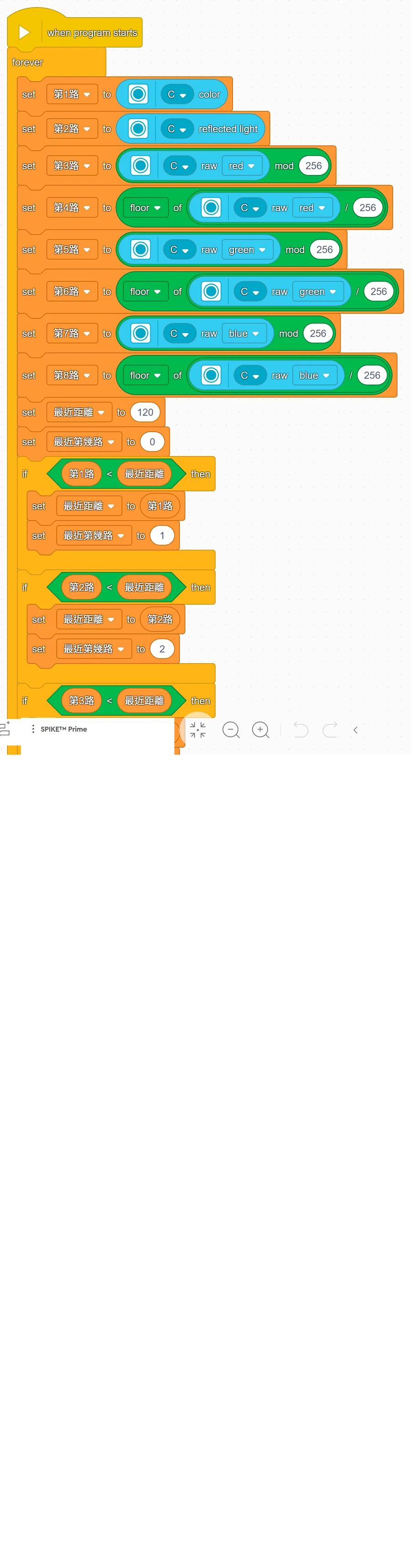
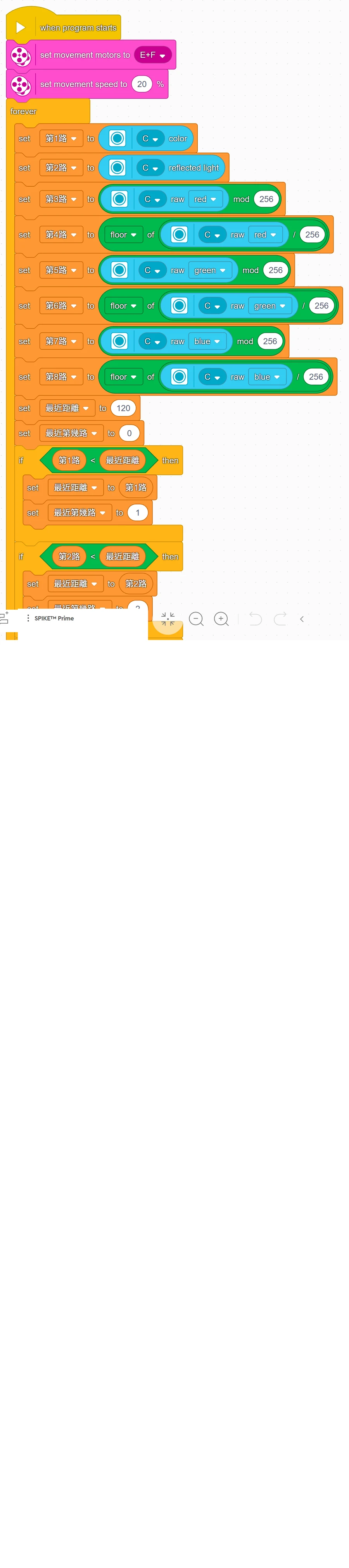
Example 1 shows you how to split these 5 blocks into 8 variables, "ch1" to "ch8", and all the later examples start with that same group of blocks.
Warning
The official App readings above are worked out from the sensor firmware and have not yet been checked one by one on real hardware. This applies especially to channel 1 (the color block) and channel 2 (the reflected light block): the App may only accept 0 to 10 (color) and 0 to 100 (reflected light), and we have not confirmed whether larger values get clipped. If the official App version of Example 1 shows -7 no matter where your hand is (channel 1) or shows odd numbers, please switch to the MBC Blocks website or Pybricks for now and let us know.
Example 1: Which direction is the nearest thing
What this example does: the hub display shows which direction the nearest thing is in (-7 to 7). Hand on the left shows a negative number, straight ahead shows 0, on the right shows a positive number; nothing around shows ✕.
What you need
- 1 SPIKE hub
- 1 Ranger 8-Way
- Your hand (or a book)
How to connect: plug the Ranger 8-Way into port C.
Download the program
| Official LEGO App | MBC Blocks website | Pybricks |
|---|---|---|
| ex01_nearest_direction.llsp3 | ex01_nearest_direction.abp | ex01_nearest_direction.py + library |
🟨 Blocks in the official LEGO App
🟦 Blocks on the MBC Blocks website
Pybricks code
# 測距者 8 路 範例 1:最近的東西在哪個方向(螢幕顯示 -7 ~ 7,沒東西顯示 ✕)
# 接線:測距者 8 路 → C 埠
from pybricks.hubs import PrimeHub
from pybricks.parameters import Icon
from pybricks.tools import wait
from MBC_laser8_obj_Lib import MBC_LASER8

hub = PrimeHub()
laser8 = MBC_LASER8(3)                      # 3 = C 埠(1=A、2=B、3=C、4=D、5=E、6=F)

while True:
    dist = laser8.min_distance()            # 最近的東西有多遠(公分,0~120;120 = 四周都沒東西)
    direction = laser8.min_direction()      # 最近的東西在哪個方向:負的 = 左邊、0 = 正前方、正的 = 右邊
    if dist >= 120:
        hub.display.icon(Icon.FALSE)        # 沒看到東西 → 顯示 ✕
    else:
        hub.display.number(direction)
        print('方向', direction, '  距離', dist)
    wait(200)                               # 等 0.2 秒再讀下一次
Step by step: what the program does
- Repeat forever: the blocks inside keep running until you press stop.
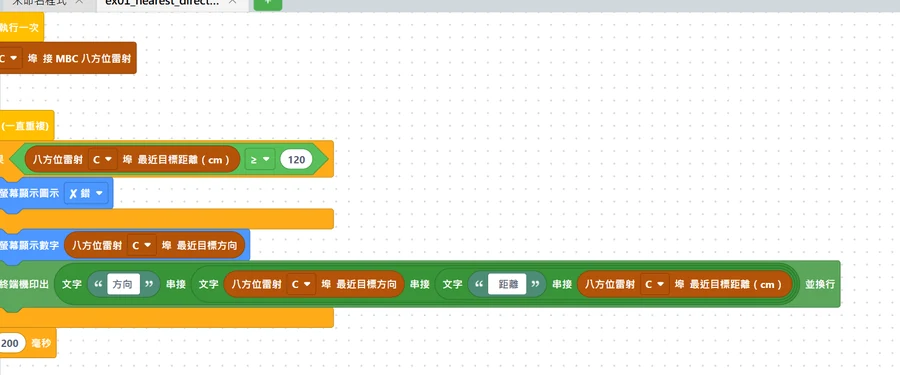
- Read the nearest distance and direction: the MBC Blocks website and Pybricks have "nearest target distance" and "nearest target direction" directly.
In the official App you build it yourself, in 3 parts:
- Read the 8 channels: following the table above, split the 5 blocks into 8 variables, "ch1" to "ch8".
- Compare channel by channel: start by assuming the "nearest distance" is 120 and the "nearest channel" is 0; then go from channel 1 to channel 8, and if this channel is closer than the "nearest distance", remember it. After the comparison, "nearest channel" is the closest channel (it stays 0 if nothing is there).
- Convert to a direction: direction = channel × 2 − 9 (channel 1 → -7, channel 4 → -1, channel 5 → 1, channel 8 → 7).
- If nothing is there (MBC Blocks website and Pybricks: nearest distance ≥ 120; official App: nearest channel = 0) → show ✕.
- Else → show the direction on the display. The MBC Blocks website and Pybricks also print the direction and distance on the computer screen.
What you should see when it runs
- Nothing around: ✕.
- Hand 30 cm to the far left: -7; front-left: -5 or -3.
- Hand straight ahead: 0 (the official App version shows -1 or 1, because it picks only one channel, and both channels 4 and 5 point straight ahead).
- Hand on the right: a positive number.
Common questions
- Left and right are swapped? → Your sensor is mounted the opposite way from the table (for example upside down), so you will need to swap the left and right turns in the later examples too.
- It always shows ✕? → Wait 2 to 4 seconds after power-on; or your hand is too far away (over 120 cm), or the object is black/transparent.
- The MBC Blocks website shows even numbers (for example -6, -2)? → That's normal. When your hand is right between two channels and both see it, the direction is averaged.
- It shows the same number wherever my hand is? → One channel may be broken or blocked and keeps reading a very small number. Check with the "channel N OK" block on the MBC Blocks website or
laser8.is_ok(1)tois_ok(8)in Pybricks.
Example 2: Change the light when something gets close
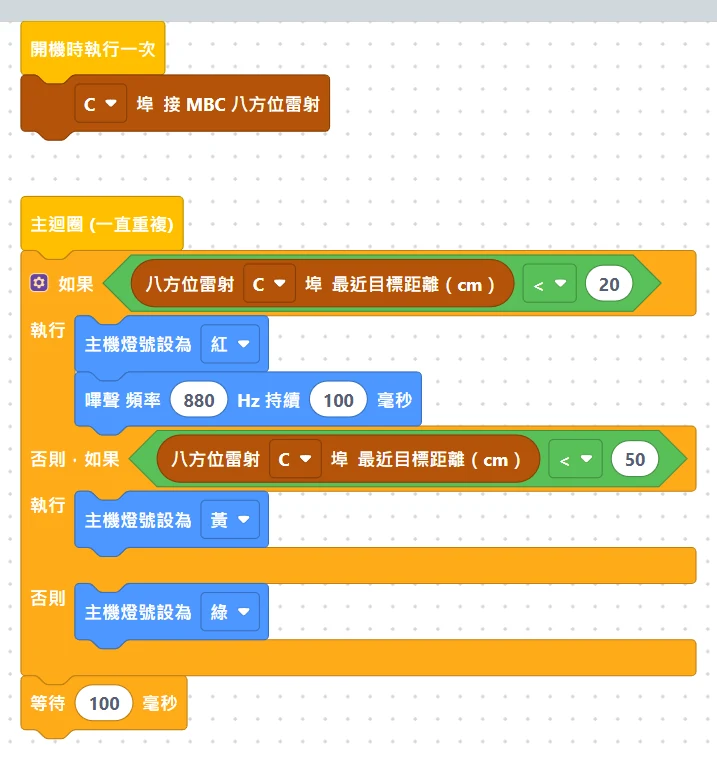
What this example does: when something gets close in any of the 8 directions, the hub light changes: yellow within 50 cm, red with beeping within 20 cm, green when nothing is near. Like a parking sensor.
What you need: same as Example 1.
How to connect: plug the Ranger 8-Way into port C.
Download the program
| Official LEGO App | MBC Blocks website | Pybricks |
|---|---|---|
| ex02_near_light.llsp3 | ex02_near_light.abp | ex02_near_light.py + library |
🟨 Blocks in the official LEGO App
🟦 Blocks on the MBC Blocks website
Pybricks code
# 測距者 8 路 範例 2:有東西靠近就變燈號(< 20 公分紅燈+嗶、< 50 公分黃燈、其他綠燈)
# 接線:測距者 8 路 → C 埠
from pybricks.hubs import PrimeHub
from pybricks.parameters import Color
from pybricks.tools import wait
from MBC_laser8_obj_Lib import MBC_LASER8

hub = PrimeHub()
laser8 = MBC_LASER8(3)                  # 3 = C 埠

while True:
    dist = laser8.min_distance()        # 8 路裡最近的那個距離(公分)
    if dist < 20:                       # 很近了!
        hub.light.on(Color.RED)
        hub.speaker.beep(880, 100)
    elif dist < 50:                     # 有東西在附近
        hub.light.on(Color.YELLOW)
    else:                               # 50 公分內都沒東西
        hub.light.on(Color.GREEN)
    wait(100)
Step by step: what the program does
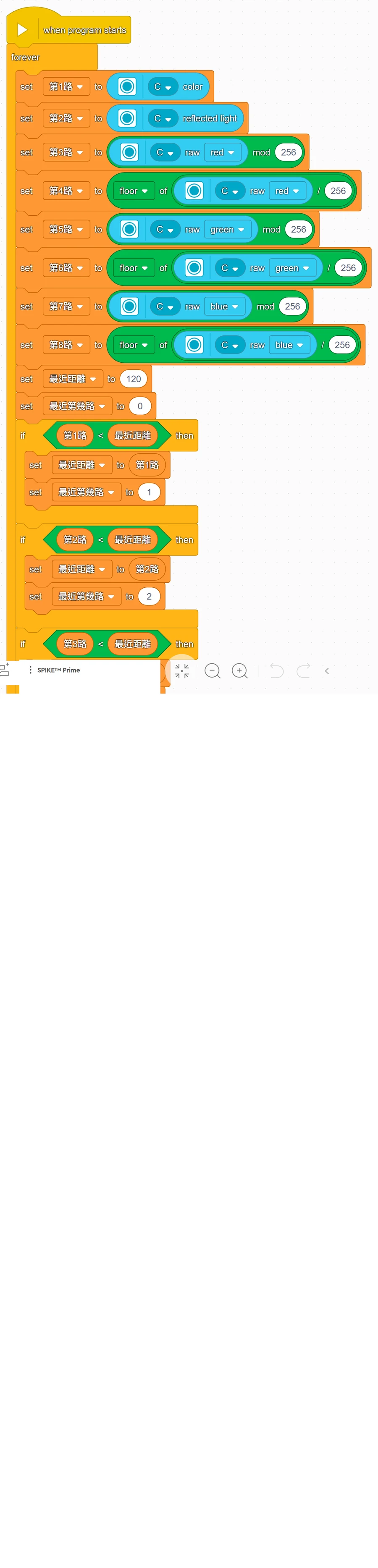
- Read the nearest distance: the official App uses the "read 8 channels + compare channel by channel" blocks from Example 1; the other two read "nearest target distance" directly.
- If nearest distance < 20 → red light and a beep.
- Else, if nearest distance < 50 → yellow light.
- Otherwise → green light.
- Wait 0.1 seconds, then check again.
What you should see when it runs: move your hand in slowly from far away, and the light goes green → yellow → red (beeping). It changes the same way when your hand comes in from the left or the right.
Common questions
- Why check < 20 first, then < 50? → 15 cm is also "less than 50". If you checked < 50 first, the red light would never come on. Write the conditions starting from the strictest one.
- It turns green when my hand touches the sensor? → When something is extremely close (within a few cm), the laser may not be able to measure it and reads 120. Leave a little gap.
- It stays yellow when sitting on the desk? → The side channels are seeing other things on the desk, or the sensor is mounted too low and sees the desktop.
Example 3: Turn to face the nearest thing
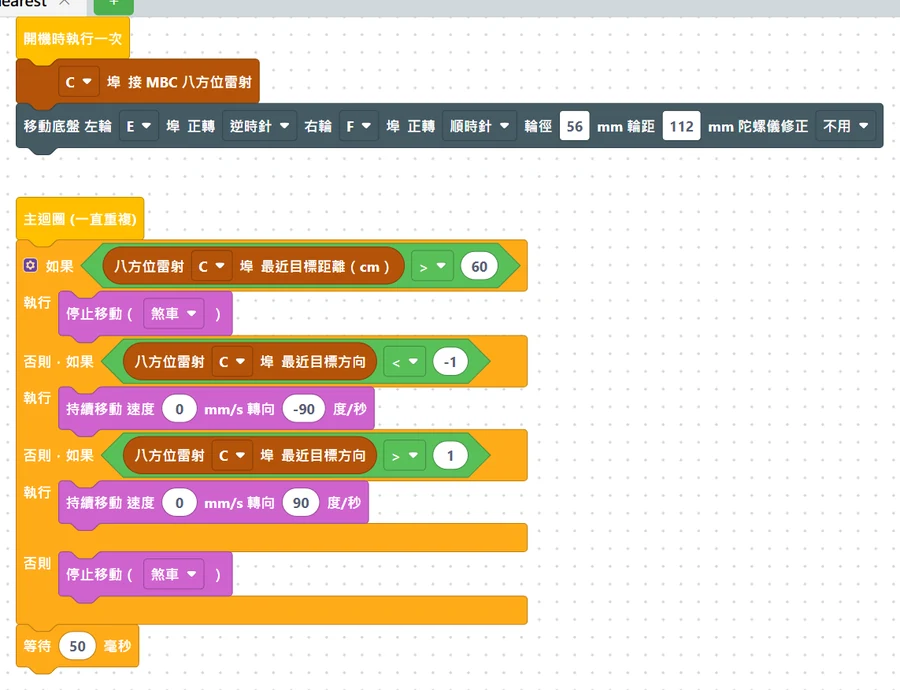
What this example does: the robot turns on the spot so its front faces the nearest thing (within 60 cm). Hand on the left → it turns left; on the right → it turns right; once it is facing you, it stops.
What you need
- Everything from Example 1, plus
- A two-wheeled robot car (two motors as the wheels)
How to connect
- Plug the Ranger 8-Way into port C, mounted at the front of the car, with channels 4 and 5 pointing straight ahead, at least 5 cm off the floor
- Left wheel motor on E, right wheel motor on F
Download the program
| Official LEGO App | MBC Blocks website | Pybricks |
|---|---|---|
| ex03_turn_to_nearest.llsp3 | ex03_turn_to_nearest.abp | ex03_turn_to_nearest.py + library |
🟨 Blocks in the official LEGO App
🟦 Blocks on the MBC Blocks website
Pybricks code
# 測距者 8 路 範例 3:原地轉頭,讓車頭朝向最近的東西(60 公分外的不理它)
# 接線:測距者 8 路 → C 埠(裝在車頭);左輪馬達 → E 埠;右輪馬達 → F 埠
from pybricks.parameters import Direction, Port
from pybricks.pupdevices import Motor
from pybricks.robotics import DriveBase
from pybricks.tools import wait
from MBC_laser8_obj_Lib import MBC_LASER8

laser8 = MBC_LASER8(3)                                 # 3 = C 埠
left = Motor(Port.E, Direction.COUNTERCLOCKWISE)       # 左輪:反過來裝,所以設成逆時針才是往前
right = Motor(Port.F)                                  # 右輪
robot = DriveBase(left, right, wheel_diameter=56, axle_track=112)   # 輪子直徑 56 mm、兩輪距離 112 mm

while True:
    dist = laser8.min_distance()
    direction = laser8.min_direction()      # -7(最左)~ 0(正前方)~ 7(最右)
    if dist > 60:                           # 太遠或沒東西 → 停著等
        robot.stop()
    elif direction < -1:                    # 東西在左邊 → 原地左轉
        robot.drive(0, -90)                 # 不前進,每秒左轉 90 度
    elif direction > 1:                     # 東西在右邊 → 原地右轉
        robot.drive(0, 90)
    else:                                   # -1、0、1:已經在正前方 → 停
        robot.stop()
    wait(50)
Step by step: what the program does
- Tell the hub where the wheels are: in the official App it is "set movement motors to E+F" at 20% speed; on the MBC Blocks website and in Pybricks it is "drive base: left wheel E, right wheel F".
- Read the nearest distance and direction (in the official App, the "nearest channel").
- If nearest distance > 60 → too far or nothing there → stop and wait.
- Else, if the thing is on the left (direction < -1; official App: channels 1 to 3) → turn left on the spot.
- Else, if the thing is on the right (direction > 1; official App: channels 6 to 8) → turn right on the spot.
- Otherwise (straight ahead) → stop.
What you should see when it runs: put your hand on the robot's left and it turns to face your hand; walk slowly around it and it keeps turning to follow you.
Common questions
- It overshoots and wobbles from side to side of my hand? → It is turning too fast. MBC Blocks website and Pybricks: make the "90" smaller (for example 60); official App: lower the 20% speed (for example 15%).
- It turns the wrong way and gets farther off? → Go back to Example 1 and confirm left and right; or the motors are mounted the other way round (see the common questions in Example 4).
- It never stops turning? → A nearby wall or table leg is closer than your hand, so it goes after the wall. Play in an open area.
Example 4: Avoid obstacles by heading for the most open side
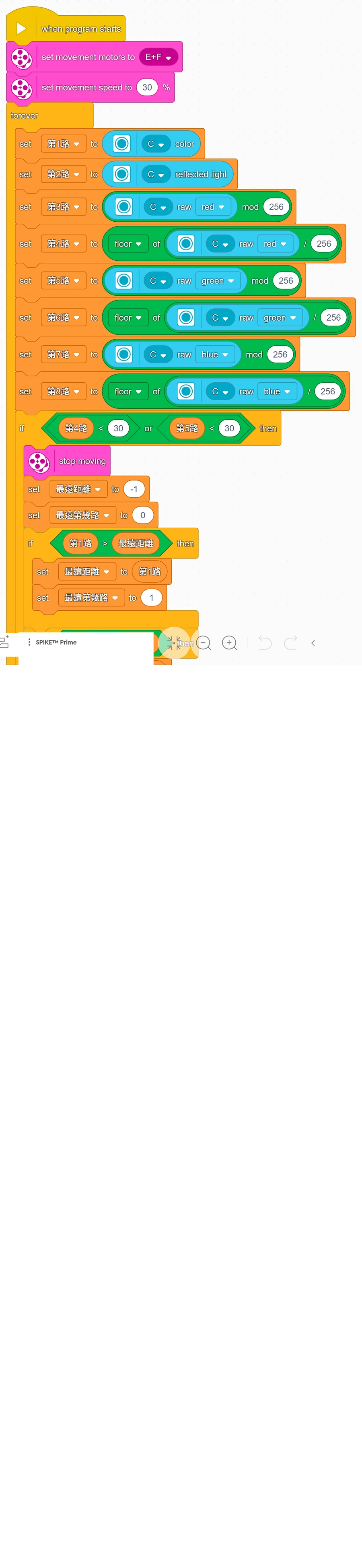
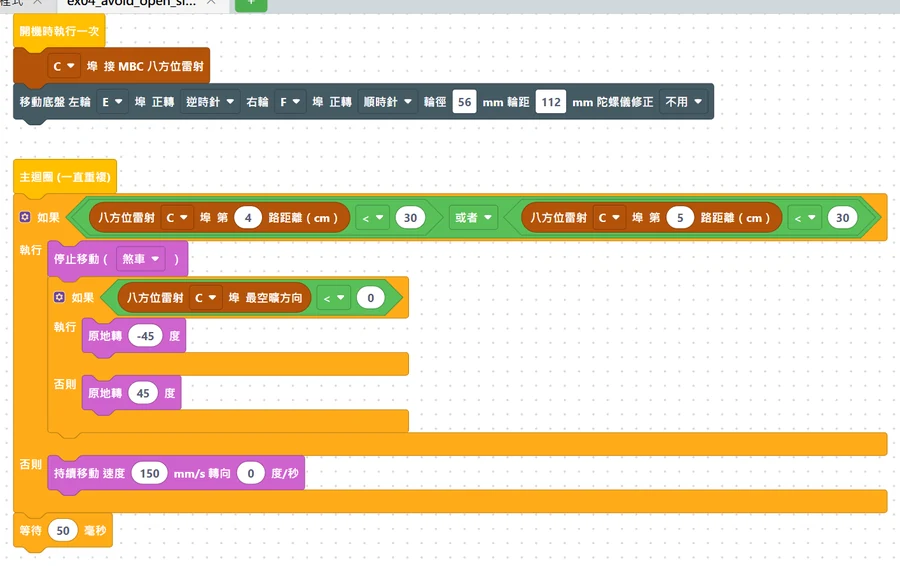
What this example does: the robot keeps driving forward. When something is within 30 cm straight ahead, it stops, checks which side is more open, turns 45 degrees that way, then keeps going.
What you need: same as Example 3, plus an open floor area with a few boxes as obstacles.
How to connect: plug the Ranger 8-Way into port C, mounted at the front; left wheel motor on E, right wheel motor on F.
Download the program
| Official LEGO App | MBC Blocks website | Pybricks |
|---|---|---|
| ex04_avoid_open_side.llsp3 | ex04_avoid_open_side.abp | ex04_avoid_open_side.py + library |
🟨 Blocks in the official LEGO App
🟦 Blocks on the MBC Blocks website
Pybricks code
# 測距者 8 路 範例 4:避障。一直往前走;正前方(第 4、5 路)小於 30 公分就停下,往最空曠的那一邊轉 45 度
# 接線:測距者 8 路 → C 埠(裝在車頭);左輪馬達 → E 埠;右輪馬達 → F 埠
from pybricks.parameters import Direction, Port
from pybricks.pupdevices import Motor
from pybricks.robotics import DriveBase
from pybricks.tools import wait
from MBC_laser8_obj_Lib import MBC_LASER8

laser8 = MBC_LASER8(3)                                 # 3 = C 埠
left = Motor(Port.E, Direction.COUNTERCLOCKWISE)
right = Motor(Port.F)
robot = DriveBase(left, right, wheel_diameter=56, axle_track=112)

while True:
    if laser8.ch(4) < 30 or laser8.ch(5) < 30:   # 第 4、5 路都朝正前方,任何一個小於 30 公分 → 前面有東西
        robot.stop()
        if laser8.max_direction() < 0:           # 最空曠的方向在左邊(負的)
            robot.turn(-45)                      # 原地左轉 45 度
        else:
            robot.turn(45)                       # 原地右轉 45 度
    else:
        robot.drive(150, 0)                      # 每秒 150 mm 往前走
    wait(50)
Step by step: what the program does
- Set up the wheels and speed: 30% in the official App; 150 mm per second in the other two.
- Repeat forever: check whether channel 4 or channel 5, the ones pointing straight ahead, reads less than 30 cm.
- If yes → stop, then find the most open direction:
- The MBC Blocks website and Pybricks read "most open direction" directly: negative (the left is more open) → turn left 45 degrees, otherwise turn right 45 degrees.
- The official App uses the same "compare channel by channel" as Example 1, but looks for the farthest channel instead: channels 1 to 4 → turn left, channels 5 to 8 → turn right. The official App's 45-degree turn is "move 0.25 rotations with steering -100 (or 100)", which is roughly 45 degrees on the standard LEGO car.
- Else → drive forward.
What you should see when it runs: the car drives forward, stops just before hitting a box, turns toward the more open side, then carries on. In a corner it keeps turning until it finds a way out.
Common questions
- It only stops after bumping into the obstacle? → Too fast, or the obstacle is black/transparent. Lower the speed, or raise the "30".
- It clips things on the side? → This example only looks at the two front channels. For extra safety, add channels 3 and 6 to the "or" so they are checked as well.
- It turns toward the opposite side from the open one? → Go back to Example 1 and confirm left and right; if they are swapped, swap the left and right turns.
- The car drives backward / the direction is reversed? → The motors are mounted the opposite way from the standard LEGO car. Official App: mount the motors the way the LEGO "standard driving base" does; MBC Blocks website: in the "drive base" block, flip the "forward" direction of both the left and right wheel; Pybricks: change the left wheel to
Direction.CLOCKWISEand the right wheel toMotor(Port.F, Direction.COUNTERCLOCKWISE). - What happens if one channel is broken? → A broken channel always reads 120, so it gets treated as "the most open", and the robot may turn toward an obstacle. Check each channel using the common questions in Example 1.
Example 5: Follow your hand
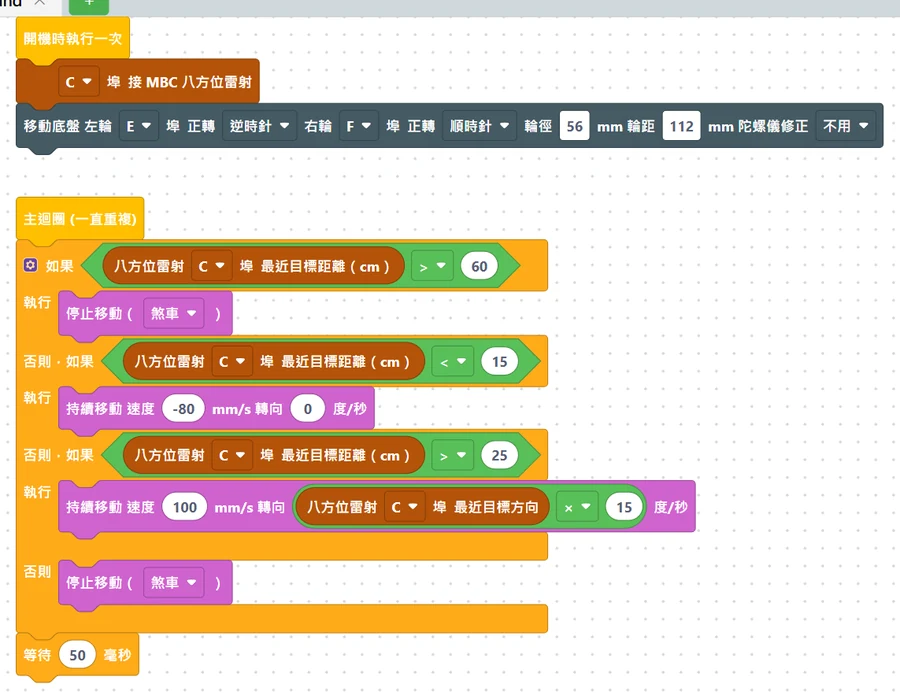
What this example does: the robot follows your hand and keeps a distance of 15 to 25 cm: when your hand is a bit far (25 to 60 cm) it drives forward while steering toward your hand; at just the right distance it stops; too close (under 15 cm) it backs up; hand taken away (over 60 cm) it stops.
What you need: same as Example 3.
How to connect: plug the Ranger 8-Way into port C, mounted at the front; left wheel motor on E, right wheel motor on F.
Download the program
| Official LEGO App | MBC Blocks website | Pybricks |
|---|---|---|
| ex05_follow_hand.llsp3 | ex05_follow_hand.abp | ex05_follow_hand.py + library |
🟨 Blocks in the official LEGO App
🟦 Blocks on the MBC Blocks website
Pybricks code
# 測距者 8 路 範例 5:跟著手走。手在 25~60 公分:一邊往前走一邊轉向手;15~25 公分:停;太近:後退
# 接線:測距者 8 路 → C 埠(裝在車頭);左輪馬達 → E 埠;右輪馬達 → F 埠
from pybricks.parameters import Direction, Port
from pybricks.pupdevices import Motor
from pybricks.robotics import DriveBase
from pybricks.tools import wait
from MBC_laser8_obj_Lib import MBC_LASER8

laser8 = MBC_LASER8(3)                                 # 3 = C 埠
left = Motor(Port.E, Direction.COUNTERCLOCKWISE)
right = Motor(Port.F)
robot = DriveBase(left, right, wheel_diameter=56, axle_track=112)

while True:
    dist = laser8.min_distance()            # 手(最近的東西)有多遠
    direction = laser8.min_direction()      # 手在哪個方向:-7 ~ 7
    if dist > 60:                           # 看不到手 → 停
        robot.stop()
    elif dist < 15:                         # 太近了 → 每秒 80 mm 往後退
        robot.drive(-80, 0)
    elif dist > 25:                         # 有點遠 → 往前走,手偏多少就轉多少
        robot.drive(100, direction * 15)    # 方向 × 15 = 每秒轉幾度(左負右正)
    else:                                   # 15 ~ 25 公分:剛剛好 → 停
        robot.stop()
    wait(50)
Step by step: what the program does
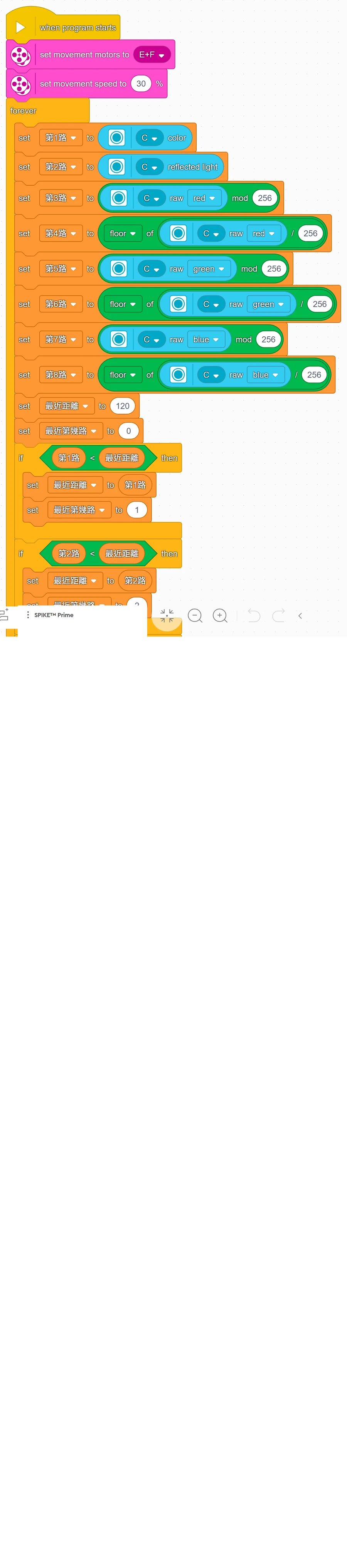
- Read the distance and direction of your hand (the nearest thing) (the official App uses the blocks from Example 1).
- Split it into 4 cases by distance, checked from top to bottom:
- > 60 cm → can't see the hand → stop.
- < 15 cm → too close → back up (MBC Blocks website and Pybricks: 80 mm per second).
- > 25 cm → a bit far → drive forward, and steer as much as the hand is off center: the MBC Blocks website and Pybricks turn at "direction × 15" degrees per second; the official App's steering is "direction × 10" (direction is still channel × 2 − 9).
- Everything else (15 to 25 cm) → just right → stop.
What you should see when it runs: put your hand 40 cm in front of the robot and it drives forward; move your hand to the left and it turns left while driving; hold your hand still and it stops about 20 cm away; push your hand toward it and it backs up.
Common questions
- It keeps jittering back and forth? → The "just right" range is too narrow. Change 15 to 12 and 25 to 30.
- It steers too sharply / too slowly? → Change the "× 15" number (the official App uses "× 10"): bigger turns faster, smaller turns slower.
- It follows the wall instead of my hand? → Something nearby is closer than your hand. Play in an open area where your hand is the nearest thing.
- The official App version doesn't back up? → Make sure the direction on the "start moving" block is the "backward" arrow.
Example 6 (advanced): How many millimeters away is the nearest thing
Note
This example comes in a Pybricks version only. The "millimeter distance" it uses lives in sensor mode 6, which the official LEGO App and the MBC Blocks website cannot read (they only read centimeters). The sensor firmware must be from 2026-10 or later; older firmware returns different numbers in that mode. The code itself is the example, so there are no screenshots.
What this example does: the hub display scrolls how many millimeters away the nearest thing is (for example 300), and the light has three levels: red within 10 cm, yellow from 10 to 30 cm, green farther away; nothing around shows ✕. The computer screen also prints which direction it is in and how many millimeters are straight ahead.
What you need: same as Example 1 (hub + Ranger 8-Way + a hand or a book).
How to connect: plug the Ranger 8-Way into port C.
Download the program
| Pybricks |
|---|
| ex06_nearest_mm.py + library |
Pybricks code
# 測距者 8 路 範例 6(進階):最近的東西有幾毫米(螢幕捲動顯示毫米、燈號分三段)
# 接線:測距者 8 路 → C 埠
# 只有 Pybricks 版:毫米距離放在感應器的「模式 6」,官方 App 和積木網站讀不到;感應器韌體要 2026-10 以後
from pybricks.hubs import PrimeHub
from pybricks.parameters import Color, Icon
from pybricks.tools import wait
from MBC_laser8_obj_Lib import MBC_LASER8

hub = PrimeHub()
laser8 = MBC_LASER8(3)                       # 3 = C 埠

while True:
    mm = laser8.nearest_mm()                 # 最近的東西有幾毫米(0~1200;1200 = 四周沒東西)
    direction = laser8.nearest_dir()         # 它在哪個方向:-8 ~ 8(0 = 正前方,負 = 左)
    front = laser8.front_mm()                # 正前方(第 4、5 顆平均)有幾毫米
    if mm >= 1200:                           # 四周沒東西
        hub.display.icon(Icon.FALSE)
        hub.light.on(Color.GREEN)
    else:
        hub.display.text(str(mm))            # 螢幕捲動顯示毫米,例如「300」
        if mm < 100:                         # 10 公分以內:紅燈
            hub.light.on(Color.RED)
        elif mm < 300:                       # 10~30 公分:黃燈
            hub.light.on(Color.YELLOW)
        else:                                # 更遠:綠燈
            hub.light.on(Color.GREEN)
    print('最近', mm, 'mm  方向', direction, '  正前方', front, 'mm')
    wait(200)
Step by step: what the program does
laser8.nearest_mm(): how many millimeters away the nearest thing is (0 to 1200; 1200 = nothing around), 10 times finer than centimeters.laser8.nearest_dir(): which direction it is in (-8 to 8, 0 = straight ahead, negative = left), the same direction as in Example 1.laser8.front_mm(): how many millimeters straight ahead (the average of channels 4 and 5), for programs that "only look forward".- If ≥ 1200 → show ✕ and green light; else show the millimeters, then split into red, yellow and green at 100 and 300.
- Reading these three numbers together only reads the hardware once; the library also has
laser8.device_id()andlaser8.firmware_version().
What you should see when it runs: hand 30 cm to the left: the display scrolls "300", green light, and the computer prints "direction -5"; move your hand to 25 cm straight ahead: "250", yellow light, "direction 0"; bring your hand in to 8 cm: "80", red light.
Common questions
- The millimeter value jumps around? → That's normal. Each laser reading varies by 10 to 20 mm; for a steadier value, take several readings and average them.
- Want to use centimeters and millimeters at the same time? → You can, but don't mix them in the same loop: every mode switch costs the sensor a few dozen ms.
- It always shows ✕? → Nothing within 120 cm in any direction; or the sensor firmware is too old (before 2026-10) and has no millimeter mode, so please update the firmware.
About speed units
- Speed in the official App is a percentage (%): 30% is roughly 30% of the motor's top speed.
- Speed on the MBC Blocks website and in Pybricks is in mm per second, and turning is in degrees per second.
- So the numbers differ between the three versions, but the movements mean the same thing.
Next steps
- Product overview, specs, beam angle layout and examples for other platforms: Ranger 8-Way product page
- Only need two points at the front, left and right: Ranger 2-Way SPIKE beginner examples
- Everything the Pybricks library can do: open
MBC_laser8_obj_Lib.py; the notes at the top are in Chinese (for examplelaser8.distances()gets all 8 channel distances at once, andlaser8.is_ok(3)checks whether channel 3 is working).