
Ranger 8-Way (TOF8) × MATRIX × MATRIXblock stock blocks
Interactive tutorialMATRIX
First time? Try the interactive tutorial in your browser first, then follow the steps below with your hub.
This page covers MATRIXblock stock colour-sensor blocks (0x22) only: how to set it up for the Ranger 8-Way (TOF8) on MATRIX Mini R4, how to read every value, the commands it supports and examples. Use the switcher above to change product, host or software.
Which edition and how to connect
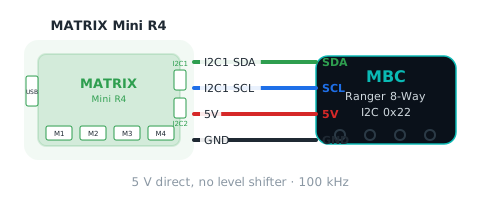
Get the MATRIX edition and connect it with the stock MATRIX 4-pin cable to I2C1 or I2C2 of the Mini R4 (address 0x22); pick that port in the block.
Setup
What you need
- Sensor: Ranger 8-Way (TOF8) (MATRIX edition).
- Controller: MATRIX Mini R4.
- Cable: the stock MATRIX 4-pin sensor cable.
- Software: MATRIXblock (the stock MATRIX block software). This method needs no extra library.
Install the software
- Install MATRIXblock (default folder
C:\matrixblock-r4\).
Make the software see the sensor
The Mini R4 sees the sensor as a stock colour sensor (I2C address 0x22); read it with the built-in blocks, no extension needed:
- The "colour sensor → R / G / B / C / M / Y / K" blocks each read one
0 ~ 255number. The firmware packs the product data into these seven slots; see the readings below for what each slot means. - MATRIXblock's Arduino mode works too:
MiniR4.I2C1.MXColor.getColor(R).
Warning
Do not use the H / S / V or colour ID blocks: the controller computes those from R, G, B itself, so they mean nothing for MBC products. MATRIX removed the grey-level and colour-number blocks, so only these seven slots are usable.
Wiring
- Connect the stock MATRIX 4-pin sensor cable to the Mini R4 I2C1 or I2C2 port.
- Choose that port in the blocks (for example
I2C1). - 5 V direct, no level shifter needed.
Wait 2~4 seconds after power-on
The Ranger 8-Way needs no calibration; plug it in and go. After power-on, wait 2~4 seconds for the 8 lasers to get ready; meanwhile everything reads 120 (cm). Start your program with a short wait before reading distances.
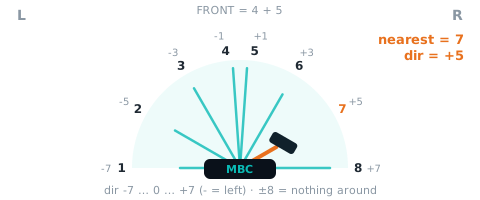
| Channel | 1 | 2 | 3 | 4 | 5 | 6 | 7 | 8 |
|---|---|---|---|---|---|---|---|---|
| Facing | left | left-front 60° | left-front 30° | front | front | right-front 30° | right-front 60° | right |
The table assumes the sensor faces forward with the components up. Put your hand on the robot's left: example 1 should show a negative direction. If it shows a positive one, the sensor is mounted the other way, and "turn left" / "turn right" in the examples must be swapped too.
Test results
The MATRIX edition passed hardware testing on a MATRIX Mini R4 with the stock library (2026-11-02): getColor(R) to getColor(K) give the 7 distances (cm) from left to right, with C being the nearer of the two front lasers 4 and 5, exactly as in the readings below; 500 reads in a row all came back.
First test
- Show the number from the "colour sensor → R" block.
- If the number changes with what is in front of the sensor, everything is connected.
FAQ
- The numbers make no sense? Make sure you use the seven slots R / G / B / C / M / Y / K, not the H / S / V or colour ID blocks.
Reading values
Use the stock MATRIXblock colour-sensor R / G / B / C / M / Y / K blocks (not H / S / V or colour ID); the Arduino-mode line is shown too.
sensor 1~8 distance (cm) distCm
| Range | Meaning |
|---|---|
0~120 cm |
distance of each sensor 1 |
Blocks "colour sensor → RK": #67 改(使用者最終定案):R、G、B = 第 1、2、3 顆;C = min(第 4, 第 5 顆)(正前方取較近);M、Y、K = 第 6、7、8 顆;全部 cm 0120;11、12 = 0
int raw = MiniR4.I2C1.MXColor.getColor(R); // group 1Not readable here:nearest distance (cm), nearest direction, farthest distance (cm), farthest direction, front distance (cm), nearest distance (mm), init bitmap, fault bitmap, front distance (mm), sensor 1~8 distance (mm). Use Arduino / mBlock / micro:bit for these.
Examples
There is no full example program for this software yet. Each item under “Reading values” above comes with code you can use as is; put them together in order, or contact us for a full example.
More questions
Still stuck? Contact us with your software and a screenshot of the program.
Downloads
Sources
- Host and software list:
_build/guides.json - Values and commands:
_build/protocol/tof8.json(single source of truth) - Setup:
_build/guides/software/matrix-matrixblock.en.md、_build/guides/product/tof8/matrix-matrixblock.en.md